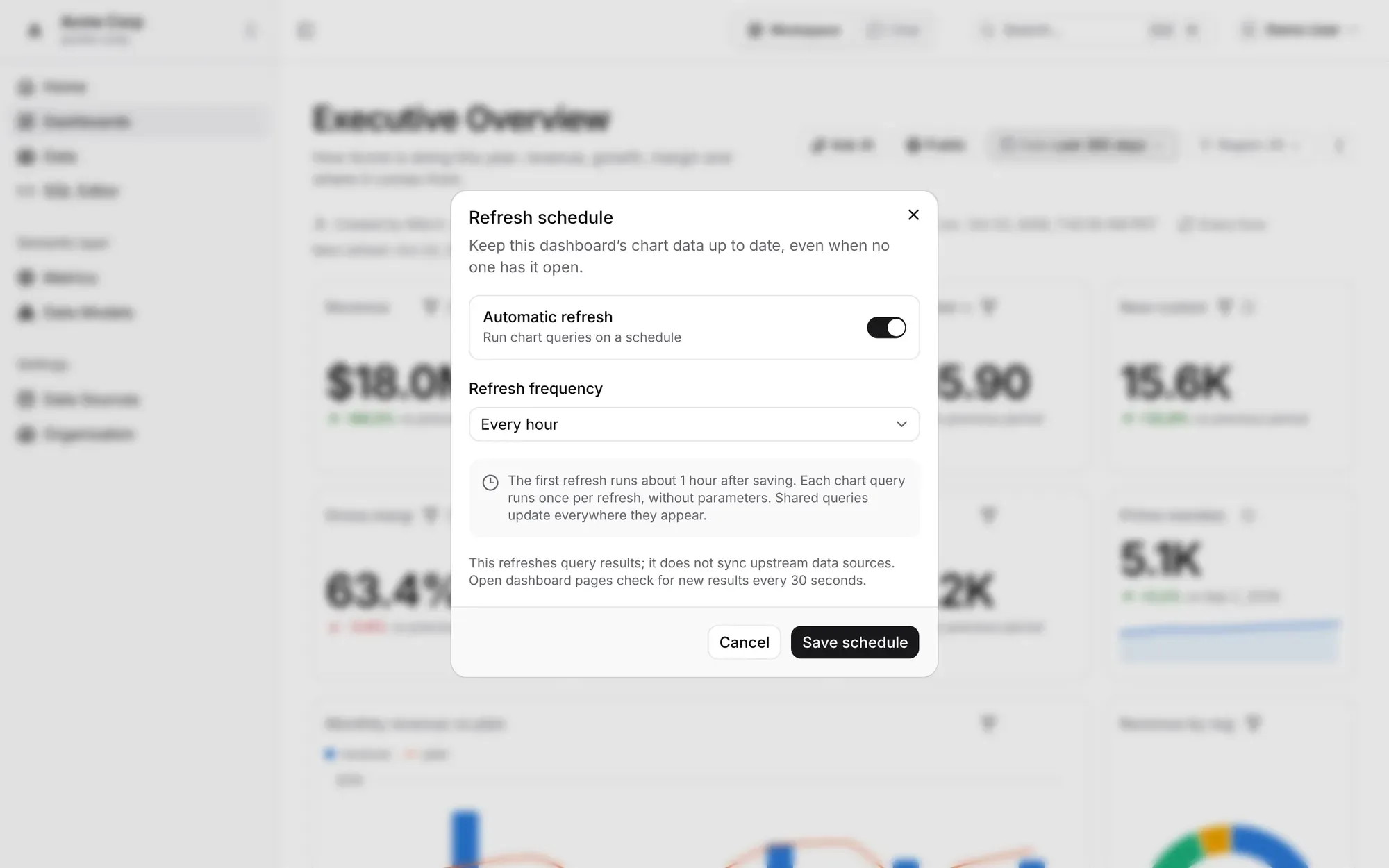
A dashboard you have to remember to refresh is a dashboard that’s out of date when it matters: at the Monday meeting, or when an advisor opens the link you sent them. Now they refresh themselves.
Refresh schedules
In a dashboard’s ⋯ menu, Schedule refresh opens the Refresh schedule. Turn on Automatic refresh and pick how often: every 5, 15 or 30 minutes, every hour, every 3, 6 or 12 hours, or every day. Each chart’s question runs again on time, even when nobody has the dashboard open, and the menu then reads Schedule · every hour.
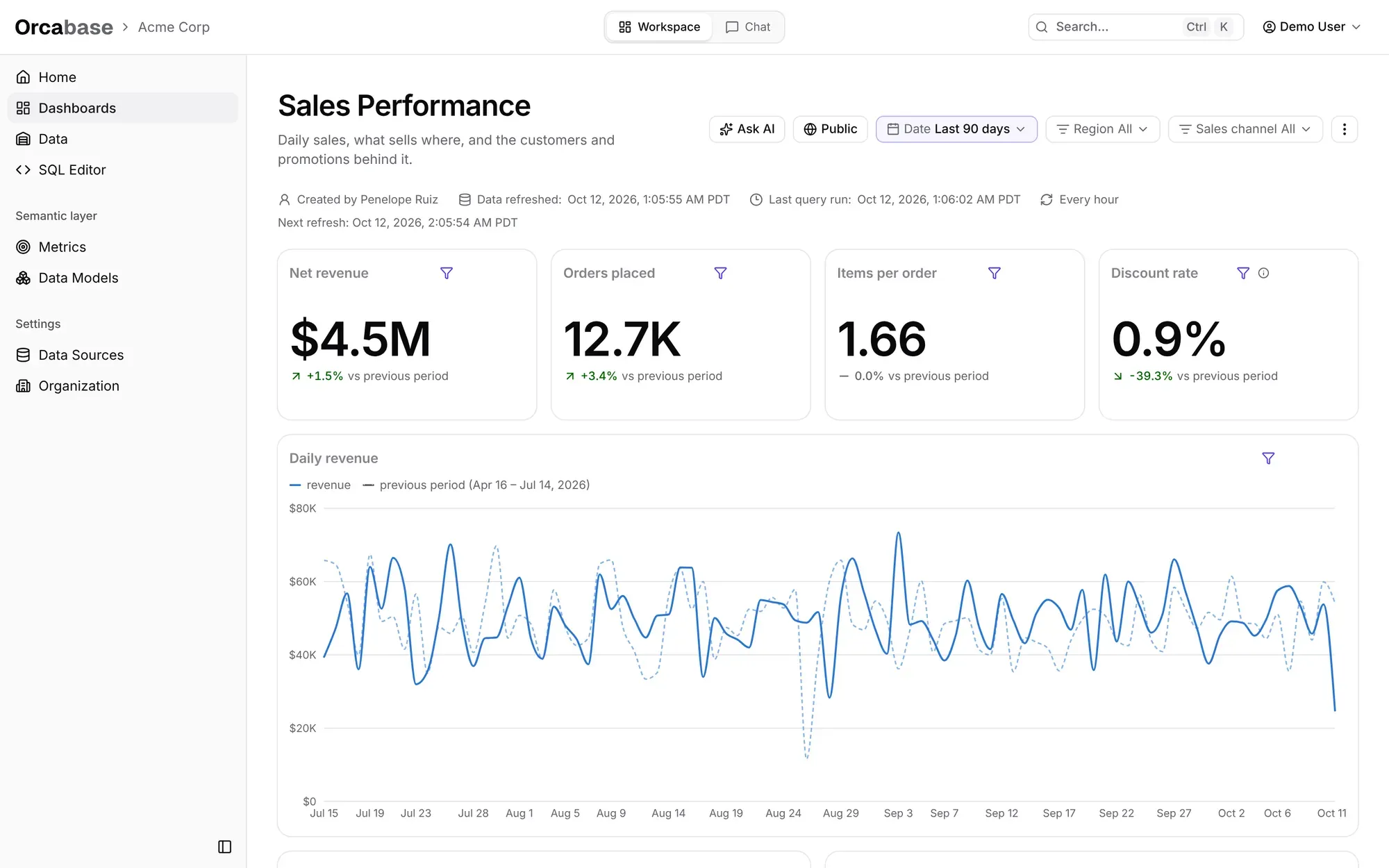
Under each dashboard’s title, a line now says who made it, when its data was last refreshed, and when the next refresh is due. An open dashboard, including a shared one, picks up new results by itself within half a minute.
A home page that’s yours
Home now opens on Your pulse: up to four charts you pin from any dashboard (Pin a chart, or Pin to home in a chart’s menu), so the numbers you check every morning are the first thing you see. Below, Pick up where you left off lists the dashboards and questions you opened last.
Pages that open at once
Pages you’ve already visited now appear at once and update in the background. Creating a dashboard or a question opens it straight away, instead of waiting on a spinner. Signing in and switching organization take fewer trips to the server, and the app loads a fraction of the code it used to before showing anything.
The docs are live
Everything above, and the rest of Orcabase, is written up step by step in the docs: connecting each kind of data, metrics, the agent, dashboards and connecting Claude or ChatGPT. They’re searchable with ⌘K, and every page has Copy page and Ask ChatGPT or Ask Claude buttons, so you can ask an assistant about the page you’re reading.