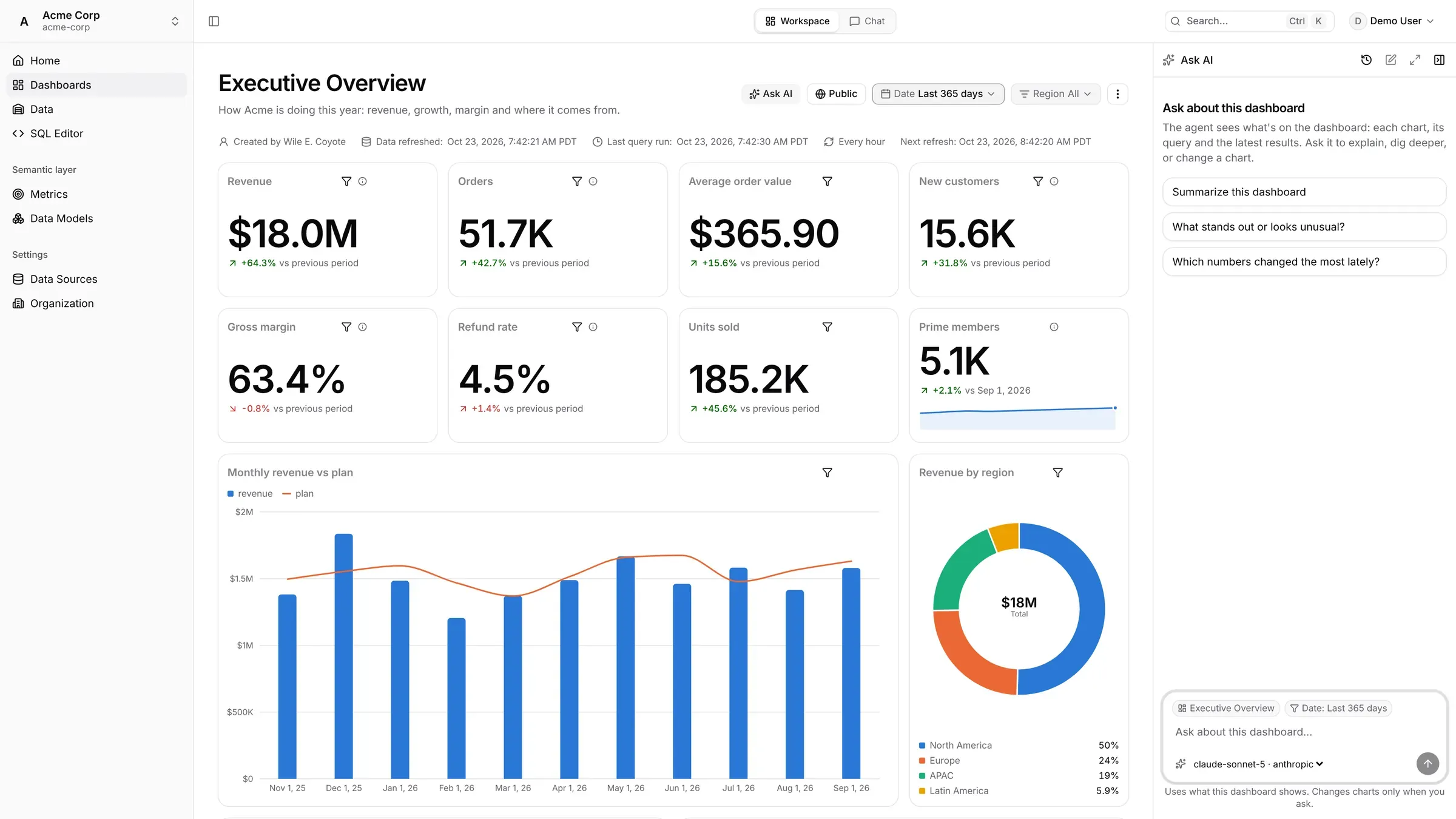
Questions come up while you’re looking at a dashboard: why did orders dip last week?, can this be weekly instead of daily? Until now that meant leaving the dashboard for the chat. Now the chat comes to the dashboard.
Ask about what’s on screen
Click Ask AI (or press ⌘J) on any dashboard or saved question, and the agent opens in a panel beside it. It already knows what’s on the page, so “this chart” and “the dip in March” mean what you think. Each chart also has Ask about this chart in its menu. The panel offers a few questions to start with, and every conversation there is an ordinary chat you can carry on later in Chat.
Ask it to change something, like “make this a weekly line chart” or “refresh this dashboard every hour”, and it changes the chart or schedule you’re looking at, rather than saving a copy next to it. It only does so when asked.
Your own Claude key
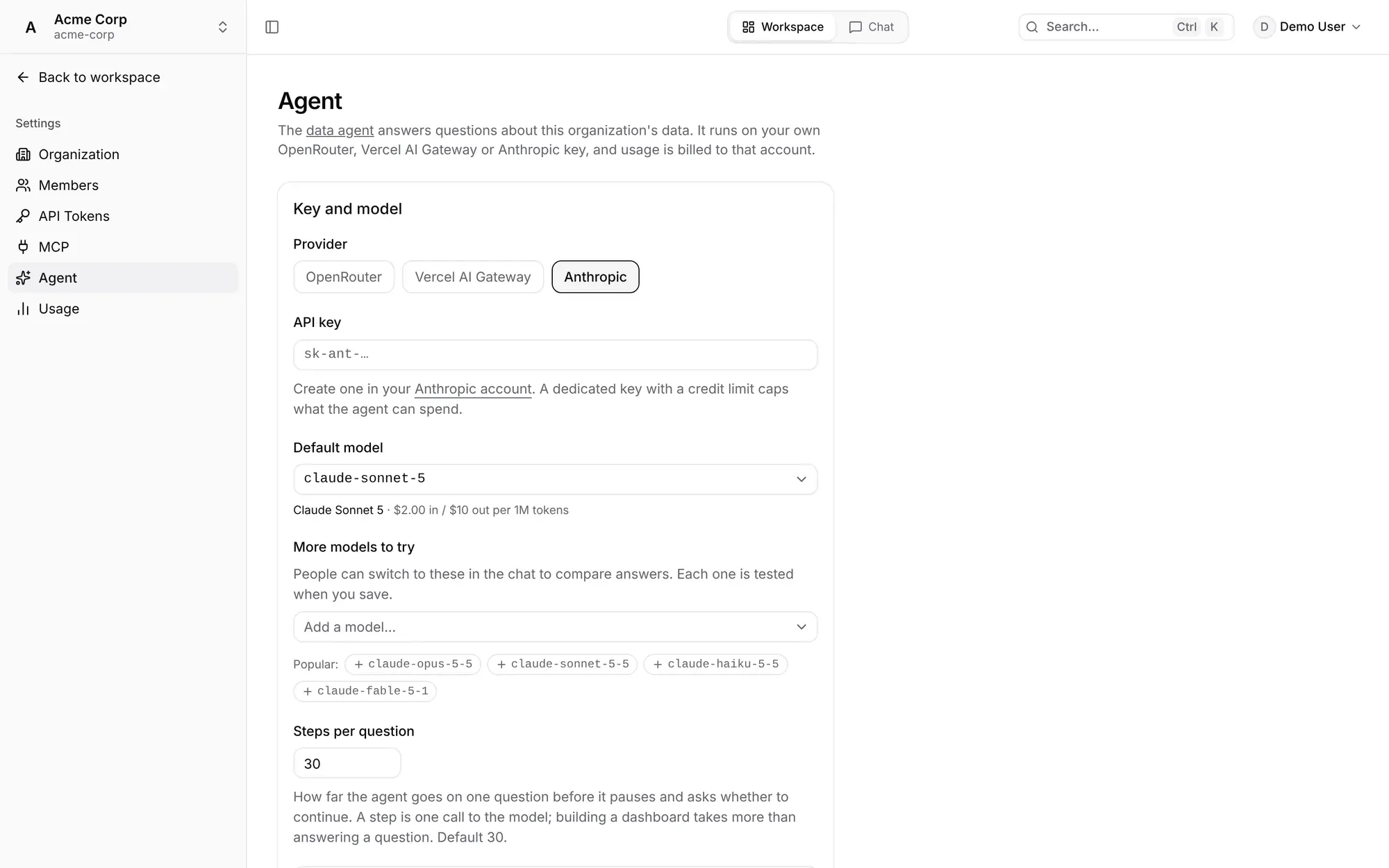
Alongside OpenRouter and Vercel AI Gateway, Settings → Agent now takes Anthropic: paste a Claude API key from your Anthropic account and pick the Claude models your team can use. As before, you pay your provider directly, at cost.
A tidier workspace
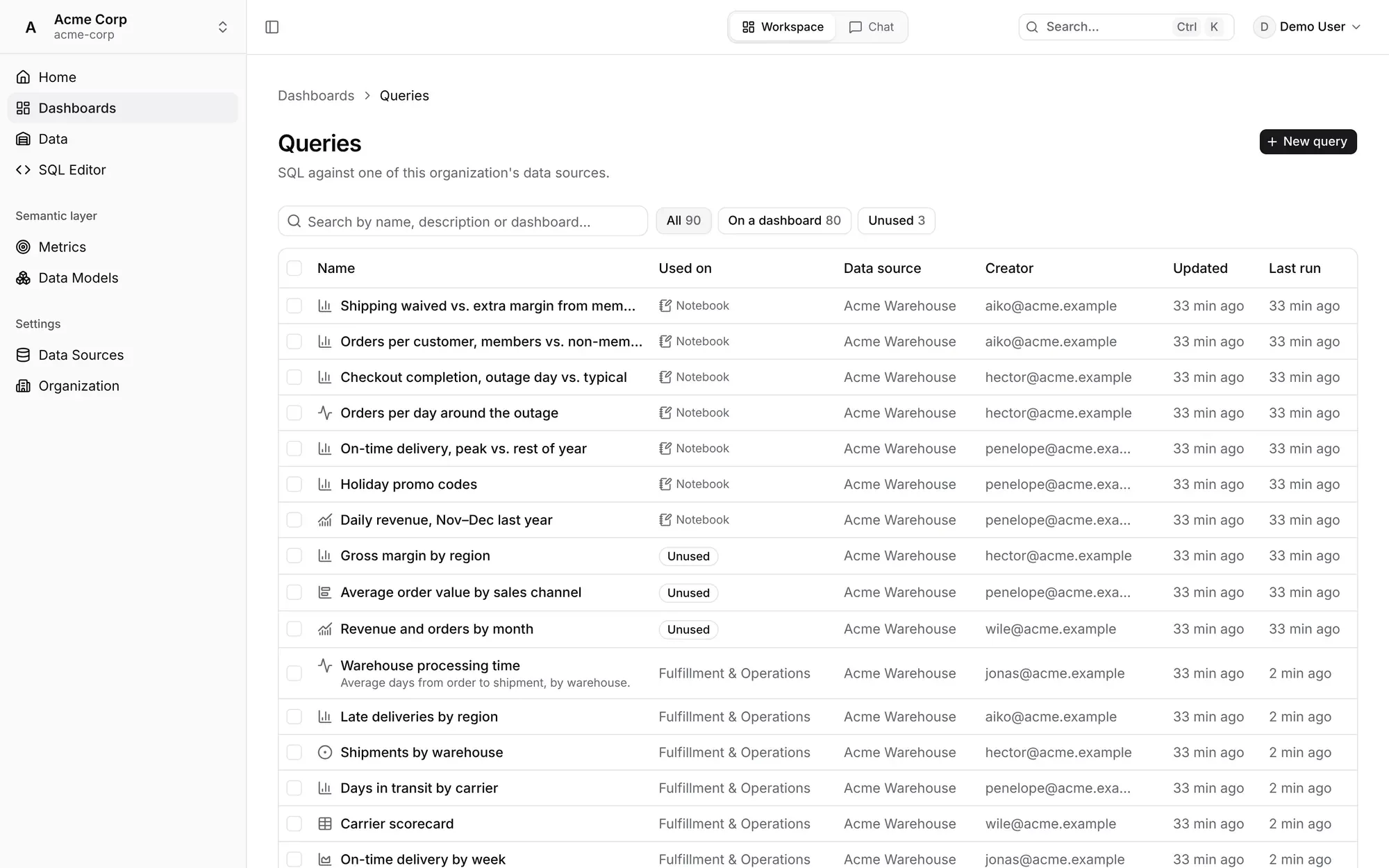
- All queries (under Dashboards) has search, and filters for questions On a dashboard or Unused, so old ones are easy to find and delete in bulk.
- A chat names itself after its first question, and you can rename it.
- Chart changes you make in a chat are saved with the chat.
- Long chats open on the latest messages, and load older ones as you scroll up.